Showing posts with label cover creation. Show all posts

Wednesday, 27 February 2019

Latest Cover Design - Rogue Retrieval

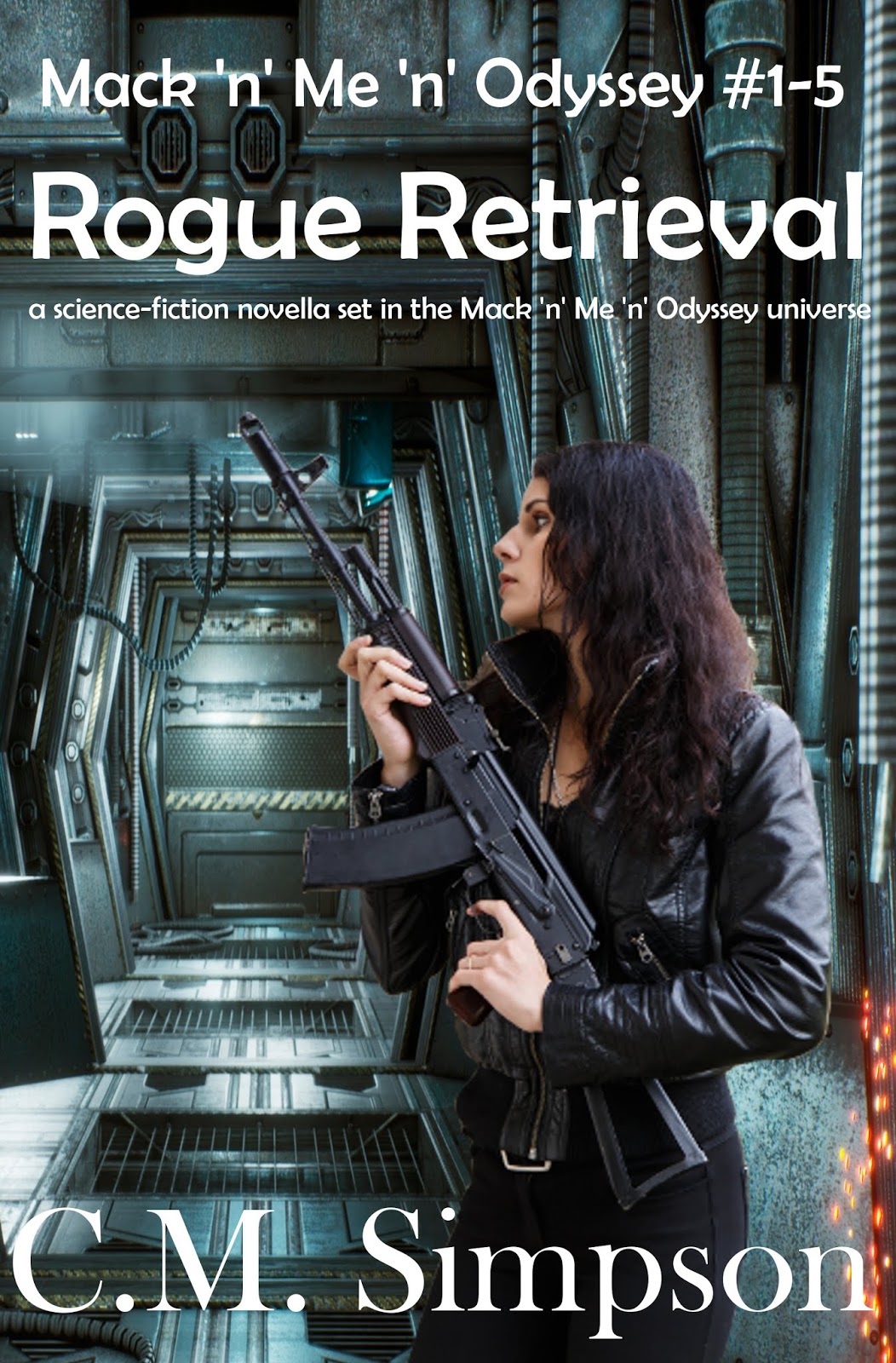
I haven't had a lot of time for arting, which is frustrating and makes me a little sad - but I have had a lot of writing and publishing happen, so I can live with that. This month I created a cover for my latest novella, Rogue Retrieval.

I sourced my picture components from Dreamstime.com, and found a good science-fiction style corridor by Savagerus, and another shot of the girl I've been using to represent Cutter, from Yekophotostudio. Those links are above.

I also used GIMP to compile the cover.

Step 1: This never varies. I create the base with the font and layout I'm using to brand C.M. Simpson's fiction.


Step 2: I find a background, in this case Savagerus's corridor, and position it on the cover.


Step 3: I isolate my female lead from her background, using the Outline and Cut functions in GIMP, and import it as a layer into the cover file... and then I use GIMP's Flip feature to face her the other way.


Step 4: I resize the background, and then trim the image so that nothing is hanging off the edges (even though it can't really be seen; it's just tidy, and I like tidy).


Step 5: I use the Erase tool in GIMP to remove the pieces of background that give the female character a light-coloured outline, in an attempt to make the two pictures seem to be one.


Step 6: I save the final cover.


Thursday, 29 March 2018

Latest Cover Design—Dear Tiger: Omnibus


Since the plan is to release an omnibus collecting all six stories in the series, I decided to design the omnibus cover as soon as the cover of the sixth book was finalised. All images were sourced from artists and photographers on Dreamstime.

I started out with the template I’d used to create the covers for the books in the series, and then added in the Roberto Pirola planetary background I was using to link the series together. I thought about using FengYu’s photograph of the letter I used for the first book, and added that in, as well.


Since the monster eyes by Plus69 were a major feature of two covers, and represented the main character, I chose to include them on the omnibus cover, as well. I also wanted to include Junichi Shimazaki’s spaceship, as there is a lot of space travel in the series. And, finally, I wanted the Ruins (sourced from Vincent St Thomas), because ruins are featured throughout the series.


As you can see, that meant the cover image was too crowded, so I had to remove one of the elements. I ended up taking out Feng Yu’s pictureof stationery as letters quickly become emails in the stories. This meant I needed to re-position Junichi’s space ship, before adding in the eyes that represent the other changeling characters in the story. The eyes were given new angles by using the Rotate Tool in the Toolbox.

First each pair of eyes had to be positioned, and then the layers linked by clicking on the chain icon beside each. Once linked, the eyes, the Rotate Tool was selected, and the eyes pivoted to their new position. These icons had to be unclicked before the next pair of eyes could be positioned, as everything with a chain link that had been clicked turned when the Rotate Tool was used.
The eyes I used were sourced from Hanna Darzy's Thai Cat, Plus69's Monster Eyes, and Panaceadoll's sets of eyes.


The final cover looked like this:


Tuesday, 27 March 2018

Latest Cover Design—Dear Tiger: Let’s Go A-Hunting

Compared to Blaedergil’s Host, the cover design for this addition to the on-going Dear Tiger series was simple:

Take your template, and make sure you change the title and the number of the book in the series. Now, add your Dreamstime-sourced, base image of planets by Roberto Pirola, linking the series together.


Find a lovely picture of the Ruins of Ta Prohm by VincentSt. Thomas at Dreamstime, and resize it, using the Move tool in the Toolbox sidebar to choose what portion to show on your cover. Highlight the layer featuring the ruins in the layer’s sidebar, and reduce the opacity to 45% using the slidebar at the top.


Add in the spaceship image you sourced from Junichi Shimazakion Dreamstime, and which you have already isolated from its background. Flip the spaceship image and move it to where you want it on your cover using the Move tool, and then highlight the background layer in the Layers sidebar, select the Image tab, and select Autocrop Image from the drop down menu to trim all the layers hanging off the edges of your cover.

The final image for this cover turned out as follows:


Saturday, 3 February 2018

Latest Cover Design: Memory's Vampire


Here’s the first cover completion for the month. This one is for a short horror story by C.M. Simpson. It’s called Memory’s Vampire.

Photographs were sourced from dreamstime.com as follows: Frederico Marsicano for the vampire (taken from his image "Two elegant handsome vampires looking camera"); Oleg Zabielin for the soldiers and the flame (taken from the photograph "Black silhouettes of soldiers"); and Ivan Vander Biesen for the graveyard (which this cover does not show to its full glory, but which can be seen in the photograph "Langemark WWI Cemetery, Flanders Fields, Ypres, Belgium"). The cover image was created using GIMP, and any manipulation misjudgements are mine.


This cover was a little difficult to complete. I wanted fire and vampires and a female character for the front, so my first idea was to have a slightly angled rear view of a woman with a flame thrower. Unfortunately, I couldn’t find one. I also looked for a woman with a grenade launcher, and a woman in body armour, but there were no satisfactory images. Point to note – why do almost all the pictures of women with military hardware look like they’re using the hardware as a prop in a photo shoot for a sexy magazine. I mean, sheesh!

I wanted a picture of a woman handling a weapon like she knew how – because that’s what the female characters in the story’s I design covers for do. They’re tough, smart, and they dress for combat, not like combat kitten sex symbols at some photo shoot. The gals I need images for are proficient, efficient, and know their soldiering, but finding pictures depicting capable combat-ready women is almost impossible, regardless of whether it’s for science fiction, fantasy or contemporary settings. I spend a lot of time looking for (and often not finding) those images.

Anyway, with a lack of side-angled rear-views of a woman operating a fire-spouting flame thrower (or any other suitable substitutes), I had to take a different approach. In addition to not finding a woman with a flame thrower, I couldn’t find a decent gout of flame-thrower flame, which meant I had to find my fire in another form, hence the picture of soldiers against a backdrop of fire - a choice I do not regret.

The next difficulty I had was in finding the kind of garden I had in my head. I wanted a palace courtyard garden, preferably with a fountain, or weeping willows or a view from under a weeping willow or from beneath a large tree looking across a formal garden. No real luck, although I had the privilege of browsing some very nice shots. In the end I decided on a most excellent grave-yard.

The final problem was the vampire. I was hoping for the classic vampire with a woman carried in his arms across his chest – and I came across an unexpected problem: most of the vampires were snarling, or in arms askew positions, or in the about-to-pounce pose. I wanted one that was dignified, sinister, and not a comical caricature - also one that did not have blood dribbling down his chin, and did not look like a madman.

There were a few that fitted this description. There were also a few that looked like zombie-vampire crosses. Anyway, I finally found the vampire in the picture, and just had to isolate him, and layer him in. Okay, and maybe rotate him a little, but he suited the image, and the story, quite well.

Steps to the design?

Well, I started with the short story template, and altered the descriptive text and the title to suit, then I added the background, deciding what portions I was going to keep in the frame, and making sure the title, by-line and short description were over the base layer. After that I darkened it a very little, and gave the contrast a slight tweak.


After that I had to decide whether or not it was going to be the soldier silhouette or the graveyard that was placed on top and made slightly transparent. The picture on the left, has the graveyard layered over the top of the soldiers with an opacity of 63.9 per cent. The picture on the right has the soldiers layered over the graveyard with an opacity of 45.5 per cent. I chose the picture on the right to serve as the base for the next stage, just because the definition was a tiny bit sharper on the soldiers.


The final stage was to slide the vampire face in between the top and bottom layers, rotate it because to have it the size I needed meant it ended before the bottom of the cover, and that ending had to be off-page—and I had to isolate the image from the background and the other vampire in the picture. This isolation required selecting the section of the picture containing the vampire I wanted, reducing it so that the longest side was 525 px in length, outlining the vampire and then cutting him away from the background, before pasting him back into the image, blanking out the background and resizing the image to the original height. After that, it was a simple matter of opening the isolated vampire as a layer in the cover image being created. It took me a couple of goes to get the angle of the face where I wanted it, with the entire cover creation process having to be repeated between attempts as I played with positioning. In the end, I chose the second-last trial run (the picture on the left, below).


All in all, this was a relatively simple cover to put together, once the images were found, but I spent quite a few hours trying to find the images I wanted, as well as reworking the cover concept when I initially couldn't find what was in my head... and now I have some more photographers I can go to when this kind of image is needed.

Tuesday, 30 January 2018

New Cover: Dear Tiger: I Don’t Think I’m Human Any More

The fourth, and final, cover completed last week was for Dear Tiger: I Don’t Think I’m Human Anymore, the second book in Carlie Simonsen’s The Tiger Letters series.

As mentioned before, I followed the common planets’ theme, using artwork by Roberto Pirola, and the emphasised a story element using photography by Stefano90, both sourced from Dreamstime.

The process was similar to those before, and I used GIMP to isolate elements in the chemistry photograph, and bring them closer together, and also to alter the opacity of the planetary art work.


The final cover is as follows:


Trapped in a room, and unable to hug her family, Simone knows she is changing. She just doesn’t know what she’s changing into, or how long it will take. The company doctors won’t tell her, and Tiger seems so far away. But at least he writes back, and he’s trying to help. Maybe, together, they can find a way out.

New Cover: Granny Finds a Gas Mask


The third cover completed this week was designed for the first chapter book in the Granny Finds Adventure series, by Carlie Simonsen. In this case, the item Granny found was a gas mask. This was a little tricky to do, but I opted for simple, using a common background, or background idea, with a single item to differentiate it.

The item for this book was the gas mask, for which I found a close approximation in a photo of a gas mask by Exopixel on Dreamstime. The background is from one of my own pictures of some Australian parkland, suitably cropped and darkened. Both gas mask and park land were manipulated by GIMP, and the cover was created by the same program.

Again, I started with a template base, and then layered in the elements I wanted. The process looked a little like this.


The final product looks like this.


Helping Gran is a chore, but with her holding their mobile phones hostage, Gareth and Giselle have no choice. Unpacking boxes of books is no surprise. Unpacking the gas mask is—and so is finding themselves back in the war, in Gran’s war, because ‘some things are meant to be changed’. How on Earth, does Gran expect them to help with this? Better yet, how on Earth, can they get back home?

Granny Finds a Gas Mask is the first book in a series where the things Granny finds lead to adventure, and Gareth and Giselle have to figure out how to get back to their own time and place.

Tuesday, 16 May 2017

Covers, Covers, Everywhere...

...or what I've been doing for the last week. Still a bit snowed under, but things are starting to get caught up and the schedule is coming back into line. We might get some sketching done, yet. In the meantime, I've done a few more covers for short stories, and I will have covers coming up for collections and longer works soon. Covers done in the last week are as follows:


Wednesday, 4 January 2017

Wednesday, 13 July 2016

Explorations in GIMP: Brightness and Contrast - Spider Demonstration

So, this week I created a cover for a story that had a spider shifter in it. It was science fiction, and not fantasy, and I used stock art, but I couldn't find the spider I wanted, so I went back through my files. I have a few spider shots, but I wanted something I could have coming down through the planet art I was using so I chose this picture of an orb weaver and save it as Spider.


The first step, of course, was to use 'Save as' to save the picture as 'Spider_Cropped', and then use the 'Rectangle Select Tool' in the toolbox to outline the part of the picture I was interested in, and then select 'Image' from the menu bar and click on 'Crop to Selection', which gave me this:

Because I wanted to superimpose just the spider over the picture, I needed to get rid of the background, so I did the following:
  1. I saved the picture as: 'Spider_Cropped';
  2. and then used 'save as' to save it as 'Spider_Cropped_Isolated'.
  3. Since GIMP has a clipboard limit of 525 px by 525 px, I again clicked on 'Image',
  4. and chose 'Scale Image' from the drop-down menu.
  5. I noted the actual length and width on a piece of paper so I could return the picture to its original size later, and then
  6. I selected the longest side and changed that to 525, which automatically scaled the shorter side so the image was kept in proportion when it was shrunk.
  7. Using the 'Free select tool' from the toolbox, I outlined the spider,
  8. and then used the 'Cut' option from the 'Edit' drop-down menu.
  9. This placed the cut out spider onto the clipboard.
  10. To get the spider back onto the image, I clicked on the clipboard and, holding the left mouse button down, dragged the spider back into the image.
  11. This gave me two layers in the Layers-Patterns dock.
  12. Because I only wanted to see the spider, I clicked on the eye beside the 'Spider_Cropped' layer. This closes the eye so the background is no longer visible. I left the eye symbol beside the 'Dropped Buffer' layer open, keeping that layer visible.
  13. This still left me with background in some areas where the legs met - and which I hadn't been able to cut out with the first outline. I got rid of that background, but outlining the area I wanted to remove and using the 'Edit' drop down so that I could, again, click on 'Cut'.
  14. When I was happy with the cut out, I resized it to its original measurements, by clicking on Image' and choosing 'Scale Image' from the drop-down menu, and putting in the original measurement for the longest side, and hitting 'resize'
  15. When the picture was back at its original dimensions, I saved the picture and closed it.
  16. This is the result:
 This spider still looked too friendly. I wanted a sinister spider, so:
  1. I used the 'save as' option to save 'Spider_Cropped_Isolated' as 'Spider_Cropped_Isolated_Darkened';
  2. then I clicked on the 'Colors' menu button,
  3. and chose 'Brightness-Contrast'.
  4. This gave me a little pop-up box with two slide bars: one for 'Brightness' and one for 'Contrast'.
  5. By sliding the Brightness bar to the left, I was able to darken the spider's colours, and
  6. by sliding the 'Contrast' bar to the right, I was able to enhance the shading so that it had harder edges. 
  7. NOTE: sometimes moving the slide bars does not seem to have any effect. When this happens, you have to use the 'Rectangle select tool' from the tool box to draw around the image you want the pop-up to affect. Once their is a moving dotted line around that part of the image, the Brightness-Contrast choices will be reflected inside that dotted line.
  8. When I was happy with what I had, I chose the 'Rotate tool' from the Toolbox to swivel the spider to the left.
  9. When doing this, I noticed that the legs seemed to fall off the edge and disappear, so I had to be careful to keep the legs inside the limits of the picture.
To position the spider in the final picture, I opened 'Spider_Cropped_Isolated_Darkened' as a layer. ('Open as Layer' is an option on the drop-down menu under the 'File' tab.)

 I also used the 'Rotate Tool' from the toolbox to swivel the spider 180 degrees and point it the other way. You can see it in the upper-left of the book cover.


One final note: Becaue I wanted to place the spider over the words, I highlighted the 'Dropped Buffer' layer and then used the slide bar on the 'Opacity' box at the top of the 'Layers-Patterns' dock to adjust the spider's opacity until the words could be seen through its tail.

And that is how I used GIMP to create the spider on Melerom Leads the Dance.

Saturday, 9 July 2016

Covers Created, Week 2: July 2-9, 2016

This week was, again, filled with covers for the publishing side of things, but did play with the contrast feature of Gimp, so I might blog about that later in the week. For the moment, I'll just show the covers I've worked on in the last week:


 And because Seppelitus was 13,500 or so words long, it was given a print-on-demand version, which meant covers were needed for the CreateSpace cover creator. Seppelitus is available in both large-print (which comes in trade paperback size) and mass-market versions so the cover sizes are quite different. Also, because the cover creator won't accept covers which protrude over a certain margin, the black border has to be added and observed, which makes the positioning of the title and by-line important. 


Like, Melerom Leads the Dance, The Taletellers' Slumber is only available in ebook, so only one cover version was required.


And I discovered that the title and byline on Rendezvous at the Raptor's Rest was in need of tweaking, so I worked through those changes while I was at it.


All in all, a busy week for covers.